Free Texas Outline SVG for Cricut & Crafts
Download a free Texas outline SVG for Cricut, laser cutting, shirts, wood crafts, classroom maps, custom projects, and more. Choose Solid or Outline.
- Free Texas Outline SVG download
- Transparent background
- 2 variants
- SVG and PNG, no signup
Texas Outline SVG variants
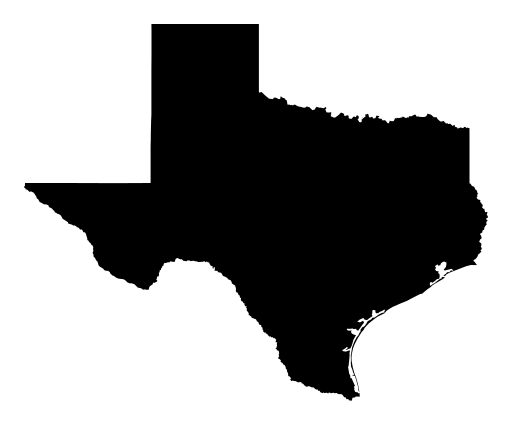
Texas Outline SVG preview — solid variant on a transparent background, 512 × 425 view box.
About the Texas Outline SVG
Download an accurate Texas outline SVG for Cricut and other cutting machines. This state map is generated from official US Census geographic data, so the shape represents Texas geography rather than stylized artwork. Choose the Solid variant for bold shirts, decals, signs, and classroom displays, or use the Outline variant for tracing, layering, labels, and clean engraved designs.
The flat, multi-color vector style works well for state-pride shirts, hometown crafts, wood cutouts, paper projects, classroom maps, and laser cutting. SVG files remain crisp when resized, unlike PNG images that can become blurry or require background removal before cutting. Open the file in Cricut Design Space, Silhouette Studio, Figma, Inkscape, or another compatible editor to adjust scale, colors, layers, or materials. You can also use the map in web graphics and printable layouts while preserving its precise Texas outline.
How to use the Texas Outline SVG
- Step 1
Download the cut file
Grab the Texas Outline SVG as a clean vector with a transparent background — free for personal projects, no signup.
- Step 2
Open it in your craft or design app
Cricut Design Space, Silhouette Studio, Figma, and Illustrator all import SVG, so the Texas Outline SVG stays editable shape by shape.
- Step 3
Resize and recolor it
Scale the Texas Outline SVG to any size and swap its colors to match your project — vector paths never blur or pixelate.
- Step 4
Cut, print, or export PNG
Cut it on vinyl, press it onto a shirt, or export a PNG with the Download PNG button for tools that only take raster files.
Frequently asked questions about the Texas Outline SVG
Can I use this Texas SVG for commercial projects?
Check the download page's stated usage rights before selling shirts, signs, wood cutouts, or other finished products. If the license does not clearly allow commercial use, contact the site owner or limit the file to personal and educational projects.
How do I use the Texas outline SVG with Cricut?
Download a variant, then upload the SVG in Cricut Design Space and choose it as a new project. Resize the map, assign colors or cut layers as needed, and select the material setting for vinyl, cardstock, or another medium.
What is included in the download?
The page offers Solid and Outline Texas SVG variants. Each is a scalable, flat multi-color vector map based on official US Census geographic data, making it suitable for cutting, printing, editing, and web use.
Can I open or edit this file in Figma or on a website?
Yes. Import the SVG into Figma, Inkscape, Illustrator, or another vector editor to change colors, scale, and layer treatment; you can also place it directly in an HTML image or inline SVG layout.
How can I convert the SVG to PNG or change its colors?
Open the file in Figma, Inkscape, Illustrator, or a trusted browser converter, then export it as a PNG at your desired dimensions. To recolor it, select the vector fill or stroke and choose a new color before exporting or saving the edited SVG.
Want a custom design as SVG?
Looking for something other than the Texas Outline SVG? Upload your own image to our free converter and get a scalable SVG instantly — everything runs locally in your browser.
Convert an image to SVGMore states SVG SVGs
Free SVG SVG downloads from the same category as the Texas Outline SVG.
Free Missouri Outline SVG for Cricut & Crafting
States
Free Indiana Outline SVG for Cricut Crafts & More
States
Free South Carolina Outline SVG for Crafting and More
States
Free Alabama Outline SVG Cut Files
States
Free Louisiana Outline SVG for Cricut & Crafts
States
Free Kentucky Outline SVG for Crafts & Cutting Machines
States
Free Minnesota Outline SVG for Cutting & Crafts
States
Free Wisconsin Outline SVG for Crafting & Cutting Machines
States