Lossless WebP logo

4.2 KB

15 paths · 8.6 KB
Compact style, default settings
Lossless WebP keeps exact pixels, so flat shapes trace into very few paths and the SVG stays small.
Drop a WebP image and get an SVG built from real vector paths, traced right in your browser. Transparent WebP backgrounds stay transparent. No upload by the converter, no signup.
PNG, JPG, WebP, BMP, or GIF. Your file stays in this browser.
A WebP is a grid of pixels, just compressed more efficiently than PNG or JPG. To convert WebP to SVG, the converter decodes the WebP, groups similar colors into flat regions and traces each region as a vector <path>. The SVG scales without blurring and every shape stays editable.
Every WebP is traced three ways at once — Illustration, Clean and Compact — so you can compare them and download the best one. Illustration and Clean use imagetracerjs; Compact uses vtracer compiled to WebAssembly. Everything runs on your device, and the WebP is decoded by your browser, so lossy, lossless and transparent WebP files all work.
Measured on 2026-11-20 by running the real converter (a local production build in headless Chromium) on three test WebPs we made for this page: a lossless logo, a lossy illustration and a logo with a transparent background, each 480 × 320 px. Sizes are in KB (1 KB = 1,024 bytes).
Compact style, default settings
Lossless WebP keeps exact pixels, so flat shapes trace into very few paths and the SVG stays small.

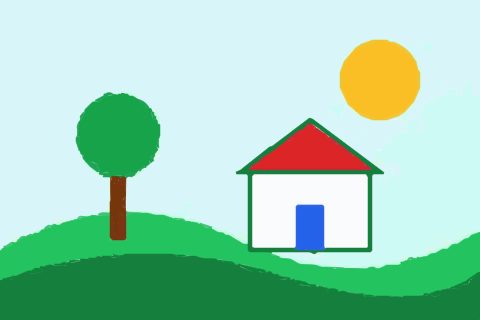
Illustration style, default settings
Lossy compression softens edges and adds faint color noise, which turns into extra small paths at default settings.


Illustration style, default settings
Fully transparent pixels are never traced, so the SVG has no background shape. The checkered panel shows through.
Each conversion produces all three styles. Default = built-in settings (Denoising Strength: Weak, 24 colors, 640 px processing size). Strong = the same with Denoising Strength set to Strong. Every output contained <path> elements and none contained an <image> element.
| WebP input | Style | Default | Strong |
|---|---|---|---|
| Lossless WebP logo (4.2 KB) | Illustration | 28 paths · 8.2 KB | 14 paths · 5.2 KB |
| Lossless WebP logo (4.2 KB) | Clean | 28 paths · 8.2 KB | 14 paths · 5.2 KB |
| Lossless WebP logo (4.2 KB) | Compact | 15 paths · 8.6 KB | 14 paths · 7.5 KB |
| Lossy WebP illustration (quality 50) (3.1 KB) | Illustration | 131 paths · 35.5 KB | 41 paths · 14.1 KB |
| Lossy WebP illustration (quality 50) (3.1 KB) | Clean | 159 paths · 41.1 KB | 56 paths · 17.1 KB |
| Lossy WebP illustration (quality 50) (3.1 KB) | Compact | 135 paths · 43.9 KB | 34 paths · 22.8 KB |
| WebP with a transparent background (4.2 KB) | Illustration | 55 paths · 12.5 KB | 22 paths · 5.6 KB |
| WebP with a transparent background (4.2 KB) | Clean | 74 paths · 17.2 KB | 25 paths · 6.5 KB |
| WebP with a transparent background (4.2 KB) | Compact | 48 paths · 16.8 KB | 15 paths · 9.5 KB |
An .svg file is not automatically a vector. A converter can also base64-encode the original WebP and place it inside an SVG as an <image> element. That file is still pixels: it blurs when scaled up, cannot be recolored shape by shape, and gives cutting machines and plotters no outlines to follow.
This converter traces instead. Its output is made of <path> elements with solid fills. In our 2026-11-20 test every output contained paths and none contained an <image> element or a data:image URL. You can check any SVG yourself: open it in a text editor and search for "<image".
<svg xmlns="http://www.w3.org/2000/svg" viewBox="0 0 480 320">
  <path d="M0 0 C158.4 0 316.8 0 480 0 …" fill="#FEFEFE" />
  <path d="M0 0 C1.18 -0.01 1.18 -0.01 2.38 -0.02 …" fill="#1D4ED7" />
  <!-- 15 paths in total -->
</svg><svg xmlns="http://www.w3.org/2000/svg" viewBox="0 0 480 320">
<image width="480" height="320"
href="data:image/webp;base64,UklGRi4AAABXRUJQ…" />
</svg>These are the settings that exist in the converter's Adjust Settings panel. Change them and choose Apply & Re-generate. Save as Default stores them in this browser for next time.
| Setting | Options | Default | What it does |
|---|---|---|---|
| Output style | Illustration, Clean, Compact | All three are generated | Illustration: flat color layers with the dark lines merged into one line-art layer. Clean: median-filtered, color-quantized trace for a softer result. Compact: vtracer (WebAssembly) layers, usually the fewest paths for logos and icons. |
| Denoising Strength | Strong, Medium, Weak | Weak | Higher strength drops more small specks and simplifies curves. Useful for lossy WebP; lossless WebP usually traces cleanly at Weak. |
| Colors | 2 to 24 | 24 | The maximum number of flat colors in the palette. Fewer colors mean fewer, larger regions and usually a smaller SVG. |
| Processing size | 256 to 1200 px, in steps of 64 | 640 px | The WebP is scaled down so its longest side fits this size before tracing; smaller images are not enlarged. Larger values keep more detail but produce more paths and take longer. |
| Transparent solid background | On, Off | Off | Removes a flat, opaque background color that touches the image edges. A WebP that is already transparent does not need it. |
| Your WebP | Try | Why |
|---|---|---|
| Lossless WebP logo or icon | Compact; default settings | Exact pixels trace into few paths. In our test Compact gave the fewest paths for the lossless logo. |
| Lossy WebP (photos, exported web images) | Illustration or Clean; Denoising Strength: Strong; fewer Colors | Lossy artifacts become extra paths at Weak. In our test Strong produced far fewer paths (see the measurements above). |
| WebP with a transparent background | Any style; leave Transparent solid background off | Existing transparency is kept automatically. The switch is only for removing an opaque, flat background. |
WebP comes in two kinds. Lossless WebP stores exact pixels, like PNG, so edges are crisp and flat areas are truly flat — ideal for tracing. Lossy WebP throws away detail to save space, like JPG, which softens edges and adds faint color noise that the tracer may turn into small extra shapes.
Either kind can have an alpha channel. Pixels with alpha of 24 or less (out of 255) are treated as transparent and are never traced, so a transparent WebP background stays transparent in the SVG with no setting to change. Pixels with more alpha than that are traced as solid color: the SVG has no partial transparency, so soft shadows and feathered edges become hard-edged shapes. In our test every path was fully opaque.
The Transparent solid background switch is a separate feature: it reads the four corner pixels and, if all four are opaque and the same color (within ±2 on each RGB channel), removes every pixel of that color connected to the image edge. Use it for a WebP with a flat white or colored background, not for one that is already transparent.
In our test the lossy WebP illustration needed 131 paths in Illustration style at default settings and 41 with Denoising Strength: Strong, while the lossless logo needed only 15 paths in Compact style.
Three steps, all in your browser.
Drag a .webp file onto the page, click Upload your image, or paste an image from the clipboard.
Illustration, Clean and Compact are traced automatically. For lossy WebP, open Adjust Settings, raise Denoising Strength or lower Colors, and choose Apply & Re-generate.
Click Download SVG under the style you like, or Copy SVG to paste the markup into your code or design tool.
Yes. The WebP is traced into vector <path> shapes with solid fills. It is not embedded as an <image>; in our tests no output contained an <image> element or a data:image URL.
Fully transparent areas stay transparent — they are simply not traced. Semi-transparent pixels become solid color, because the SVG output has no partial transparency.
No. Your browser decodes the WebP and the tracing runs on your device; the file is not uploaded by the converter flow. No account is needed.
Lossless, because edges and flat colors are exact. Lossy WebP works too, but raise Denoising Strength to clean up compression noise.
WebP compresses pixels very efficiently, while an SVG stores every shape as text coordinates. Fewer Colors, a stronger Denoising Strength or a smaller Processing size give a smaller SVG.